The whole tour.
Wurding is a Google Chrome extension that opens in the browser’s side panel (it can also be installed and used in Microsoft Edge). This page walks through the button that opens it, what you see when it does, and what every part means.
Opening it
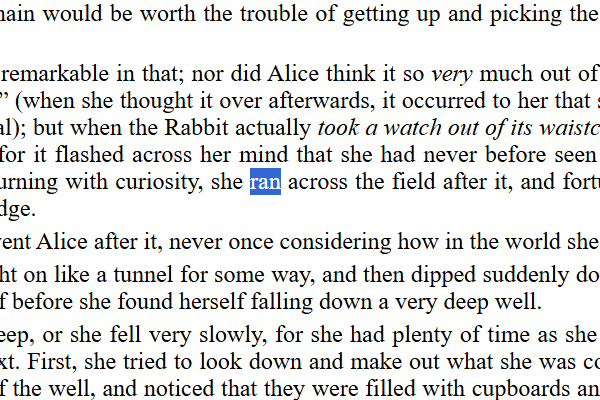
In any text on the web — your own draft in Google Docs, a Substack post you’re writing, a comment box, someone else’s article — select a single word when you want to look up its neighborhood of words, or select a few paragraphs when you want to see how it reads.
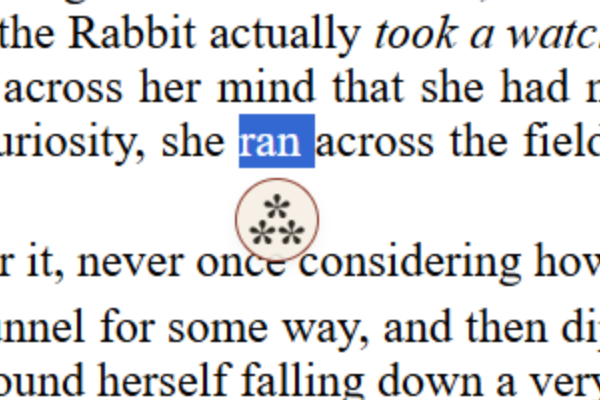
Then click the ⁂. A small mark appears just below your selection. Click it and the side panel opens with your word looked up, or your passage reviewed. The mark fades after a few seconds if you ignore it.
Just installed Wurding? Any pages that were open (before the install) need a refresh before the ⁂ button starts appearing on them.
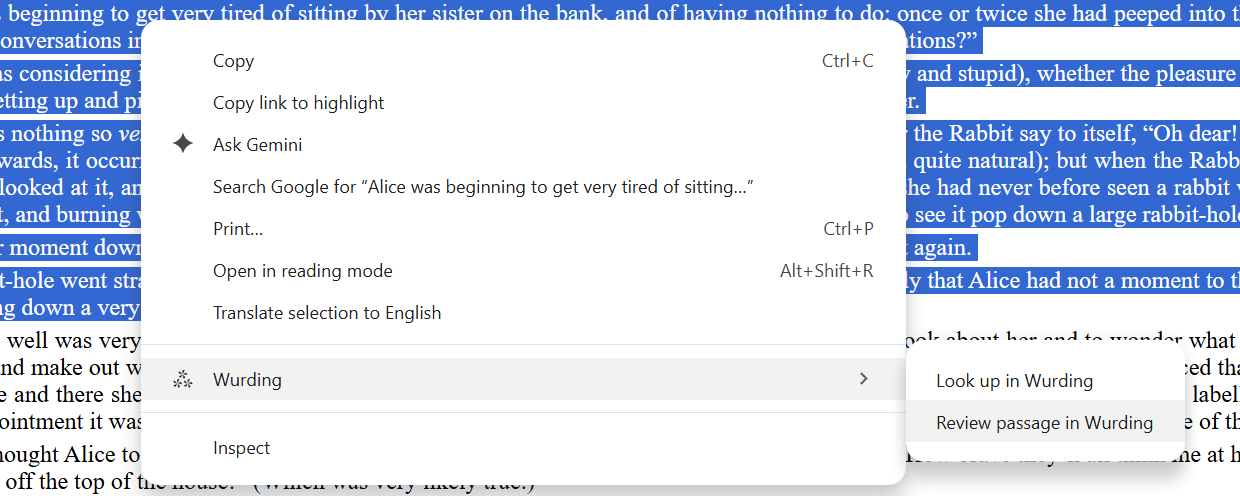
There is another way in, for when the mark is inconvenient: right-click the highlighted word or paragraphs and choose Look up in Wurding or Review passage in Wurding.
The word tab
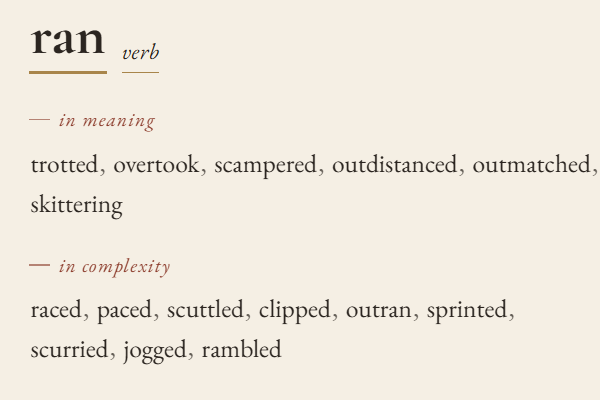
The Wurding panel has two tabs: word and passage. The word tab is where a single word lookup lands — a word and its neighborhood. The passage tab (explained further down) reads and analyzes one or more paragraphs.
Anatomy of a lookup
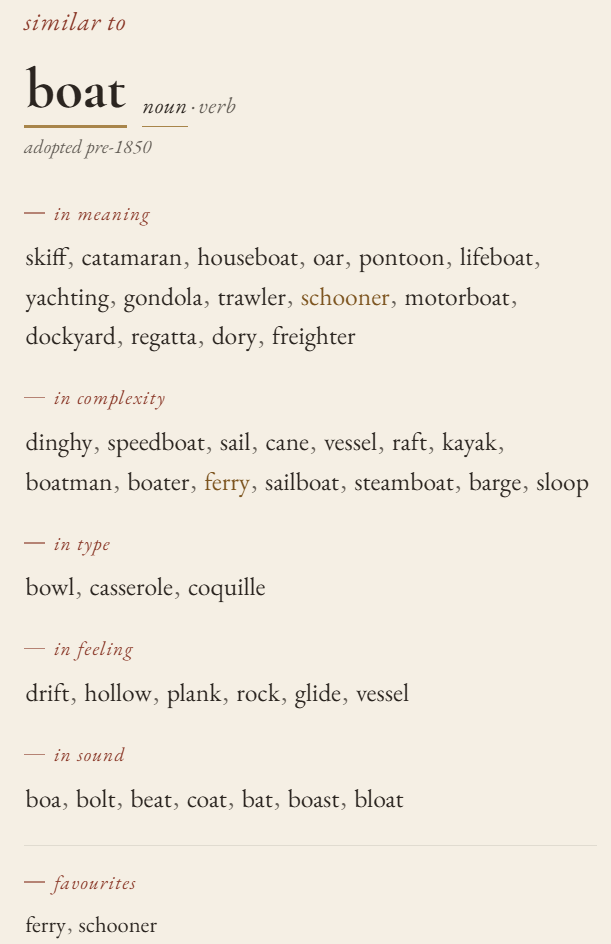
- The headword — the word you looked up, with a gold underline.
- The part of speech — noun, verb, adj. When a word has more than one, click to switch. Fast the adjective keeps very different company from fast the verb, so each gets its own neighborhood or words.
- The caption — uncommon · adopted 1942: how rare the word is and roughly when it came into use.
- Five axis rows — each a short list of neighbors. Up to 6 on the free plan, up to 15 on Pro.
- Favorites (Pro) — the words you’ve kept, in their own list at the foot. One click to look one up again. A favorite is shown in gold text whenever it appears under an axis.
The five axes
The five lists always appear in this order. The free plan shows up to 6 words per axis; the Pro plan shows up to 15.
in meaning
Words that say nearly the same thing. This is the thesaurus axis, worked out per part of speech so that fast the verb and fast the adjective don’t share a list.
in complexity
Words that are similar and about the same plainness or fanciness as the word you looked up. Look up a plain word and this row shows words that are similar in meaning and equally plain; look up a fancy word and the results here are similarly fancy.
in type
Words naming the same kind of thing. For sadness that means other states of feeling — affection, astonishment, desire, emotion. Useful when you want a sibling, not a synonym.
in feeling
Words carrying a similar emotional shade. For sadness that means melancholy, gloom, longing, heartache, sorrow. For when the meaning is right but the mood is wrong.
in sound
Words that echo yours in rhyme or rhythm. Look up gloom and you get bloom, glue, plume, loom, groom, flume. For poets, lyricists, and anyone who reads a sentence aloud before keeping it.
Any axis can be switched off in Settings if you never use it. Not sure how this differs from a thesaurus? Here is the comparison.
Clicking a neighbor
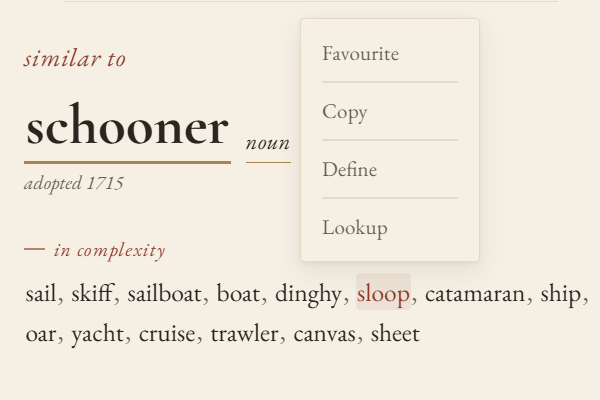
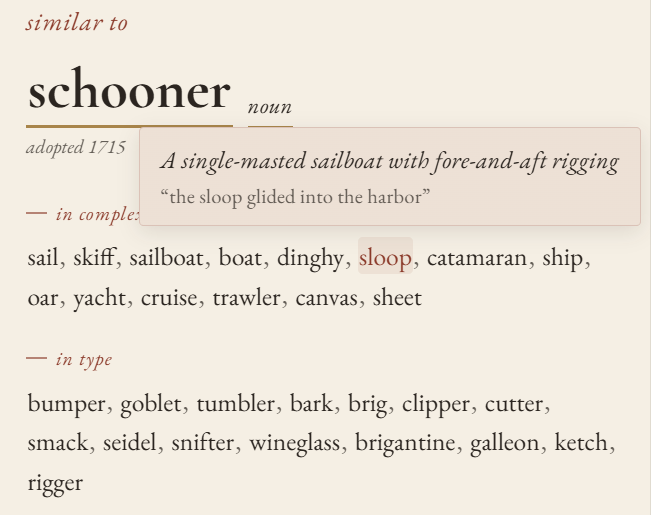
- Copy — to the clipboard, ready to paste into your draft (Ctrl+V on a PC, ⌘+V on a Mac).
- Define — up to four definitions, each with a usage example, so you know what the word means and how it is used.
- Lookup — make this word the new headword and keep exploring.
- Favorite (Pro) — keep it. Favorites sit in their own list at the foot of the panel and stay marked wherever they reappear as a neighbor.
The passage tab
When you look up one or more paragraphs for review, the passage tab is where you land. Instead of a list of neighbors, it shows how the text reads: how hard it is, which sentences slow a reader down, and which writing habits show up.
After highlighting a paragraph or more, click the ⁂ button or use the right-click context menu and select Review passage in Wurding.
With the panel open, you can also simply copy and paste directly into the input box and click the Review button. Nothing you select or paste leaves your computer.
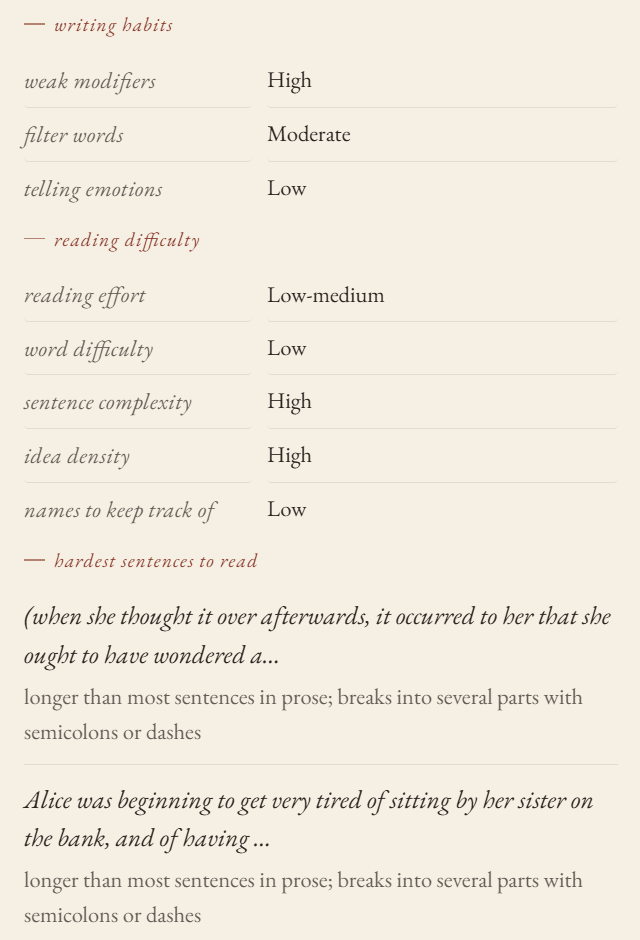
Here is what the passage tab shows. Click any heading in the panel to have it explained.
- Writing habits — patterns in how the passage is written. These are readings, not corrections. Click a value to see the examples found in your own text:
- weak modifiers — words like very, really, and just that soften a statement. Sometimes a stronger word does the job; sometimes they’re exactly right. Free shows the first three examples; Pro shows up to eight.
- filter words (Pro) — verbs like saw, felt, and noticed that that put a character between the reader and the event. Useful when the noticing matters.
- telling emotions (Pro) — emotions named outright, like “she was angry”, rather than shown through action or detail.
- Reading difficulty — how hard the passage is to read. The four ratings after reading effort are each low, moderate, or high:
- reading effort — how demanding the passage is to read overall, from very low to very high. It combines vocabulary, sentence form, information density, and names, and is calibrated against real teachers’ and readers’ judgments.
- word difficulty (Pro) — how uncommon, abstract, or late-learned the words are, compared to a broad sample of modern prose.
- sentence complexity (Pro) — how long the sentences run, and how many clauses, semicolons, or dashes they hold.
- idea density (Pro) — how much information is packed into each sentence.
- names to keep track of (Pro) — how many people, places, and other names the reader has to follow.
- Hardest sentences to read — the sentences most likely to slow a reader down, each with a short reason, such as holds several clauses at once, uses several uncommon words, or packs a lot of information into few words. Free shows the first; Pro shows three.
- Uncommon words — every rare word in the passage, with a count if you’ve leaned on one. An uncommon word isn’t a fault; this is a reading, not a correction.
Settings
To open the settings, click the cog wheel in the header of the panel.
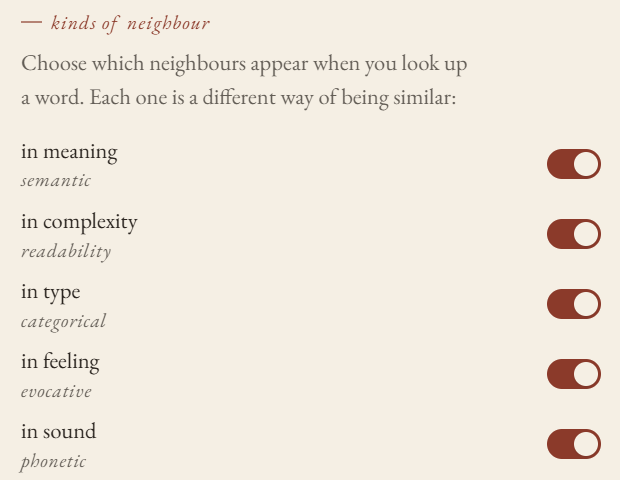
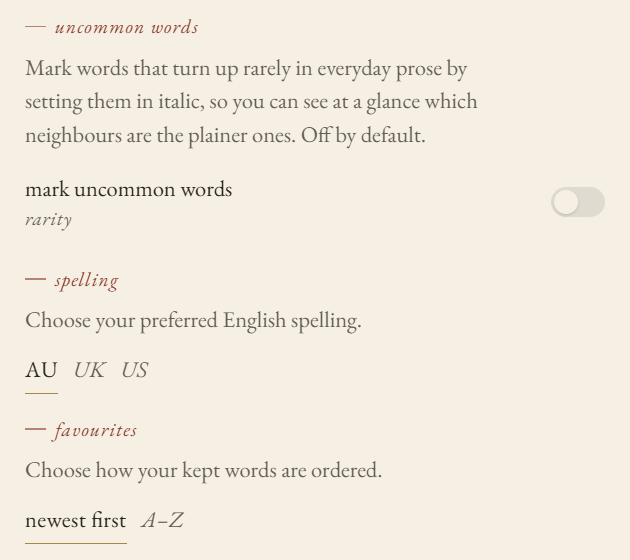
- Show or hide each of the five axes.
- Mark uncommon words in italic throughout the panel.
- Spelling: AU, UK, or US. Neighbors follow your choice.
- Favorites order (Pro): newest first or A–Z.
- Report a bad neighbor — tell us when a word doesn’t belong. A human reads it and fixes the dictionary.
Where it works
Anywhere on the web with a text field: Google Docs, Substack, Notion, Medium, WordPress, Gmail, LinkedIn, forums, comment boxes. It also works on text you’re reading, not only text you’re writing.
Google Chrome and Microsoft Edge today. Firefox and Safari are in the workshop — leave an email and you’ll hear once when they ship.
What it never does
It never reads your whole document — only the word you selected, or the passage you chose to paste. It never uses AI, and it never generates text. It never sends a lookup to a server: the dictionary ships inside the extension and everything runs locally. Details on the privacy page.